 S7 Link

 Italiano
 Français
 Deutsch
 Español
 简体中文
Guide
Quick setup
Before you edit a connection, you need the PLC's IP address and its rack and slot, which tell the app where the processor sits in the automation system.
- Open the PLC tab and add a new link.
- Enter a description.
- Enter the PLC address and the link parameters: rack, slot, port (102 unless a gateway rule says otherwise) and, for LOGO!, the OP link switch. Typical rack and slot values are ready for each CPU family.
- Set the scan rate, which is how often the app refreshes its data.
- Save and confirm the new link.
- Press Connect to check the connection.
When the connection is established, the indicator in the connection bar lights up, the status reports the reads, and the button becomes Disconnect. If it does not connect, compare the parameters with your hardware: the error message says what to check, and Troubleshooting explains each case.
Rack and slot
Typical values, the same ones the app offers. Always follow your own S7 hardware configuration.
- Rack
- 0
- Slot
- 2
- OP link
- Off
Connection on the PN port. With another CP card, change the slot number. PLC date and time can be read and set, but not on every PLC type.
- Rack
- 0
- Slot
- 3
- OP link
- Off
Connection on the PN port. The slot depends on where the CPU sits in the rack, and with another CP it changes. PLC date and time can be read and set, but not on every PLC type.
- Rack
- 0
- Slot
- 1
- OP link
- Off
Connection on X1 PN. Enable PUT/GET access in the CPU protection settings and use data blocks without optimized access. The INFO page shows what the CPU provides.
- Rack
- 0
- Slot
- 1
- OP link
- Off
Connection on X1 PN. Enable PUT/GET access in the CPU protection settings and use data blocks without optimized access. The INFO page shows less than on an S7-300, because the CPU provides less.
- Rack
- 0
- Slot
- 1
- OP link
- On
Connection on X1 P1. Turn on the OP link switch: it is what allows the connection to LOGO!. The INFO page shows what the CPU provides.
Remote access
The app talks to the PLC with the standard ISO TSAP on TCP port 102 (RFC 1006). Inside the same network there is nothing else to configure. From outside, the traffic has to reach the PLC through your gateway.
Through a VPN
Connect the device to the plant's VPN and use the PLC's internal IP address in the link, as you would on site. Port 102 stays unchanged.
Through a gateway rule
S7 driver
The PLC always uses port 102. Define a rule on the gateway that connects an external port to it, and set that same external port in the app.
myplc.example.com8086192.168.1.10102OPC driver
In OPC mode the PLC uses the port number set in the link configuration, 4840 by default. So define on the gateway the right forwarding rule to the PLC.
myplc.example.com8088192.168.1.104840With a dynamic DNS name
If your external address changes, a dynamic DNS service gives it a stable name. Set the internal IP on the PLC, connect it to the external address with the gateway rule, and enter in the app the same name used on the DNS service.
192.168.1.10AAA.BBB.CCC.DDDmyplc.example.commyplc.example.comDon't forget to set the gateway's IP address in the S7 hardware configuration. Without it, the PLC cannot answer outside its own network.
App pages
Five tabs along the bottom, the same on iPhone and iPad.
Command
Operate from a distance with configurable virtual pushbuttons, toggles and feedback lights. Different links reach different devices, areas or equipment. Different tables load different button layouts, in both portrait and landscape. Swipe or use the top selector to move to the Manual page, which has its own table of labelled commands for dedicated areas, rooms or operating stations. A key selector asks for Face ID or a PIN at every turn. Manual commands can also show a square or a left or right triangle.
Control
Check, verify and modify. Read and write memory, I/O, counters, timers and data blocks, with tables of variables under your own descriptions. Tap an LED to toggle a bit, or enter a value for bytes, words and other formats. The page reads by itself while it is open. With the Trend plugin, the Trend page draws up to five variables in one chart. If the alarm option is active, alarms appear here too.
Points
Create, edit and delete tables. Touch the details of a row to reach its full configuration: address, format, button type and mode. Copy or delete a table from its … menu.
PLC
Four pages:
- Links: add, edit and delete connections, and connect. For each PLC, choose which functions to refresh: commands, manuals, variables, alarms and trend. A function switched off is neither read nor written, and its page says so.
- Status: front panel LEDs, memory resources and cycle time.
- Date/Time: read and set the PLC clock, from the device or by free selection. S7-300 and S7-400 only.
- Info: identification, state, cycle, memory, communication and diagnostic buffer, as far as the CPU provides them.
More
Setup options, backup and restore, configuration sharing and app information. Choose among 11 backgrounds, each with the light or dark theme that keeps it readable, the look of pushbutton labels and the startup page.
Table types
Each table holds up to 40 items. Commands and manuals use a pair of signals, one for the command and one for its feedback.
| Type | Use |
|---|---|
GEN | Generic use, without a specific purpose |
VAR | Variable table, like a Siemens VAT |
CMD | Virtual pushbuttons |
MAN | Manual commands |
ALA | Alarms, with the alarm option |
TREND | Variables for the chart, with the Trend plugin |
Backup and sharing
- Backup with Files: export and import PLC links and point tables through iCloud Drive, Dropbox and other services. The files are SQLite databases (
.db), which you can also edit and import again. - Local backup: a service copy that lets you change tables without worry and return to the previous state at any time.
- Sharing: one device shares its configuration on the network, and another finds it and imports links, points or both. It works with devices that still have iS7, too.
- From iS7: backups made with iS7 can be restored.
Troubleshooting
| What you see | What to check |
|---|---|
| The PLC does not answer | Address and network. From outside, also the gateway rule, and the gateway's IP in the S7 hardware configuration. |
| Local network access is off | Turn it on for S7 Link in Settings > Privacy & Security > Local Network. |
| Connection refused by the PLC | Rack and slot. See typical values. |
| Request refused by the CPU | On S7-1200 and S7-1500, enable PUT/GET access in the CPU protection settings. |
| Address not available | That the address exists. On S7-1200 and S7-1500, the data block must not use optimized access. |
| Alarm notifications arrive late | This is expected: iOS decides when the check runs, even hours apart, and the PLC must be reachable at that moment. |
Still stuck? Send a request.
Limitations and security
Advanced functions
Some functions use the SZL (System Status List), a table kept by the CPU's operating system. The SZL gives real-time information on the state of the CPU, the hardware modules, the communication settings and the diagnostics.
For security reasons, and as technologies evolve, access to the SZL has been restricted in the firmware of the latest CPUs. For this reason some S7 Link functions are not available on the latest CPUs.
More information on the Siemens website: overview of the System Status List (SZL).
Access to the PLC
Today, communication with the PLC has two limits: the PLC must allow PUT/GET access, and access by address can only read and write non-optimized data blocks.
With the OPC Client plugin, S7 Link removes these limits on S7-1200 and S7-1500: it reaches the PLC's OPC UA server securely, with a user name and password, and accesses the variables by their symbolic names. See Preparing the PLC for OPC UA.
Scan rate
S7 Link reads the variables once per scan of the PLC link. A signal that changes faster than half the scan rate is not shown faithfully: for example, a 1 Hz clock flag read once per second can appear on for about 15 s and off for another 15 s. To follow it, set a 200 ms refresh.
Preparing the PLC for OPC UA
With the OPC Client plugin, S7 Link talks to the OPC UA server of S7-1200 and S7-1500 CPUs. Over OPC UA, optimized data blocks work too, and so do CPUs with PUT/GET access turned off. These are the steps in TIA Portal; the captures of each step are on the OPC Server Setup page.
Server and licence
- In the CPU properties, turn on the OPC UA server. The default port is 4840.
- The CPU needs the OPC UA runtime licence: size Large for S7-1517 and S7-1518.
Security and users
- Security policies: S7 Link supports them all, None, Basic256Sha256 Sign and Basic256Sha256 Sign & Encrypt.
- Authentication: user name and password, or guest access. Even on the None endpoint, the PLC receives the password encrypted with its own certificate.
- With TIA Portal V18 and firmware 3.0, users are created in CPU Properties › OPC UA › Server › Security › User authentication.
- With TIA Portal V19 or later and firmware 3.1 or later, they are created in Security settings › Users and roles, with a role that has the right to access the OPC UA server.
Certificates
Turn on “Automatically accept client certificates during runtime”, or import the S7 Link certificate into the TIA Portal certificate manager: the app can export it. On the first connection, S7 Link shows the fingerprint of the PLC certificate and asks you to confirm it.
Data blocks and variables
Turn on “Accessible from HMI/OPC UA” for the variables to read, and “Writable from HMI/OPC UA” for those to write.
Clock and download
Set the PLC clock, or an NTP server: it matters for certificate validity and for the time of alarms. Finally, download the hardware configuration to the CPU, because the OPC UA settings and the users travel with it.
In S7 Link
- In the PLC editor, in the OPC Client panel, turn on “OPC UA driver” and enter the user and password; with an empty user, S7 Link connects as a guest. The password stays in the device Keychain. “S7 driver (PUT/GET)”, in the PLC hardware panel, can stay on or be turned off.
- With both drivers, the connection bar has two lights, S7 above and OPC below, each with its own state: green online, orange connecting, red failed, yellow when the PLC address answers ping. With S7 off, a press or write on an S7 point answers “S7 driver not active on this link.”
- Security: Automatic, None, Sign, or Sign and encrypt. The port is 4840, unless you changed it. “Test the OPC UA connection” shows the model, firmware and RUN/STOP state.
- “Export the certificate of S7 Link” creates the
.derfile to import into TIA Portal. - On the first connection, or if the PLC certificate changes, the “PLC certificate” notice shows its SHA-256 fingerprint: if it is your PLC, tap “Trust and connect”. In the PLC editor, “Forget the certificate” removes the trusted one. In the PLC list, the OPC mark shows the PLCs that use OPC UA.
- Points have three table types: OPC variables, OPC alarms and OPC trend. In the variable editor, “Browse the PLC” leads to the data block and the variable, and S7 Link reads its type and access from the PLC. Browsing needs the PLC online over OPC UA; otherwise, type the NodeId by hand. OPC alarms appear on the alarms page and in notifications, OPC trends in the trend menu.
- With both drivers, Status and INFO use S7 and OPC UA fills in the missing data; with OPC UA alone you see RUN/STOP, model, order number, serial number and firmware. On S7-1500, where S7 refuses the clock, the PLC time is read over OPC UA, read only.
- The demo PLC uses S7 and OPC UA together, with sample OPC tables. Without the plugin, the OPC parts stay hidden and the OPC tables stay in the file.
Additional plugins
Options you can add to the app with an in-app purchase. If you already bought one with iS7, you keep it.
Alarms
Keep specific PLC signals under control. Create an alarm table in the Points tab, with a message and a class for each signal: warning, alarm or system. With the app open, alarms are read at every scan and reported with colors and a sound of your choice. After you leave the app, alarms are still checked for about 30 seconds, with sound, notification and badge. Later, in the background, you can also receive visual notifications, but iOS decides when the check runs, even hours apart, so do not rely on it for safety functions.
Trend
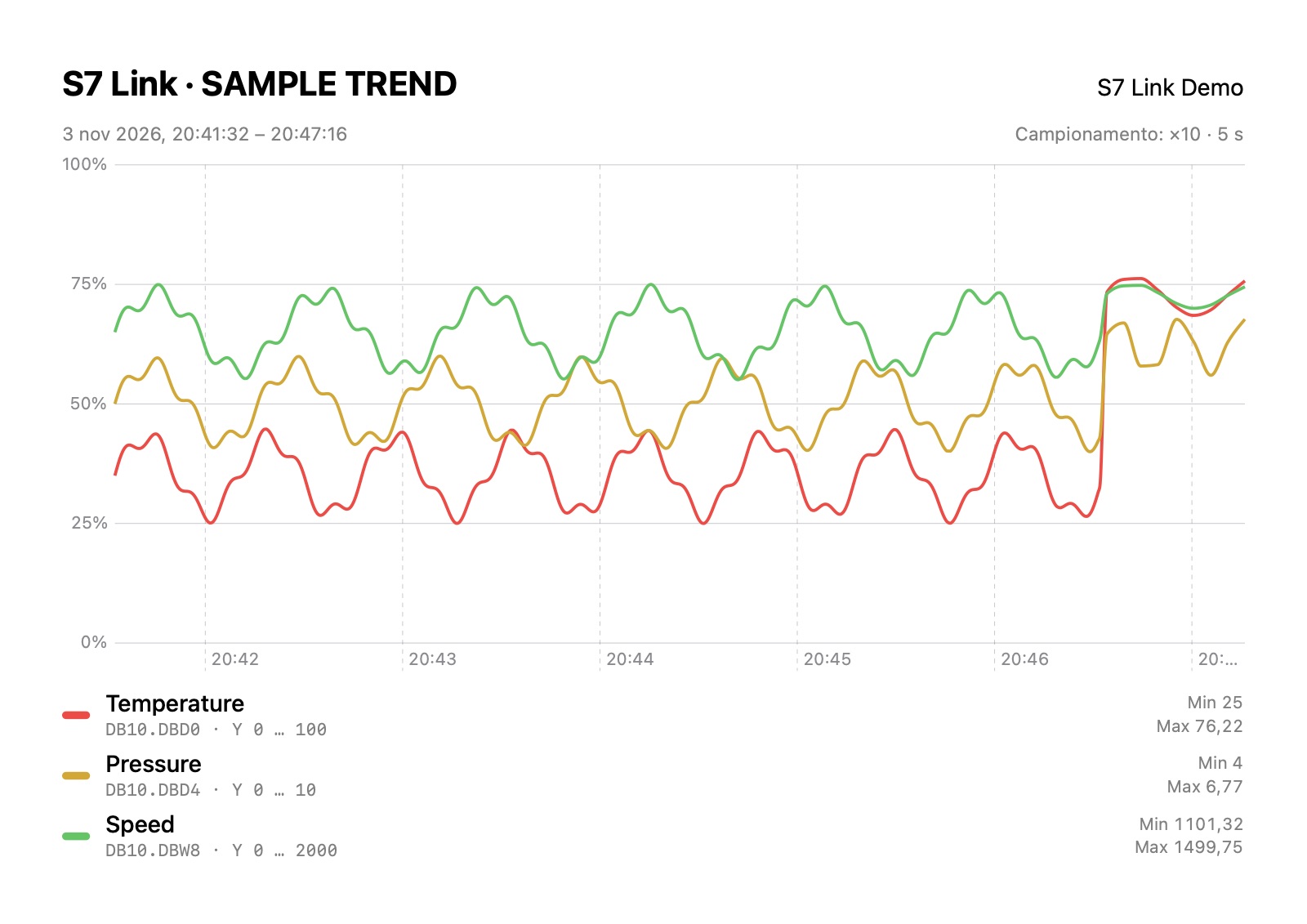
Follow how values change. Create a TREND table in the Points tab: give each variable a colour (red, yellow, green, white or blue), a Y minimum and maximum, and turn on Show in the chart. Up to five variables are drawn together in Control > Trend, each scaled on its own range, with a legend showing the real value, minimum and maximum. Values are recorded on every page while the app is connected, at every scan of the PLC link, up to 3600 samples per variable; the chart draws the latest 600, and CSV and PDF export them all. To sample less often, the timer button next to the chart records one scan out of 5, 10, 20, 50, 100 or 200: with a 1 s refresh, ×10 gives one sample every 10 s. The icon then shows ×10, the line Current sampling under the variables gives the choice and its interval, for example ×10 · 10 s, and the PDF prints it in its header. Export the data to CSV, ready for Excel in your language, or the chart to PDF. With the simulated PLC it works without buying it.
OPC Client
Reads and writes the variables of S7-1200 and S7-1500 through the OPC UA server of the CPU, optimized data blocks included, even with PUT/GET access turned off. OPC tables are for variables, alarms and trends: OPC alarms also need the Alarms plugin, OPC trends the Trend plugin. For the TIA Portal settings see Preparing the PLC for OPC UA.
Video
A short tour of S7 Link, on the built-in simulated PLC.
Demos on real hardware
Recorded with the previous iS7. The interface has changed, the idea has not. Videos open on YouTube's servers only when you press them.