 S7 Link

 Italiano
 Français
 Deutsch
 Español
 简体中文
OPC Server Setup
Activating the OPC server in the user's Siemens TIA project
The 10 steps to prepare the TIA Portal project for the S7 Link OPC Client plugin. The captures come from the English TIA Portal, with a CPU 1513F-1 PN.
Steps 5 and 7–8 are two ways to create the OPC UA user: in the CPU configuration, or in the project security settings. One is enough. At the end, download the hardware configuration and the program to the CPU.
-
Step 1
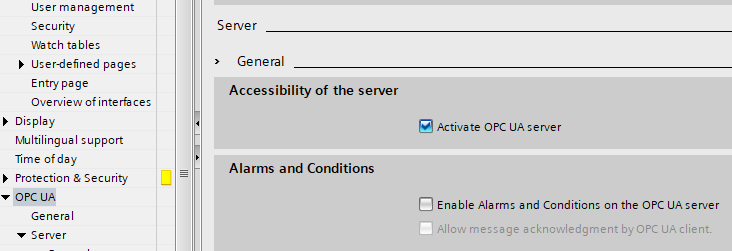
Activate the OPC UA server
In the CPU properties, under OPC UA › Server › General, tick “Activate OPC UA server”.
-
Step 2
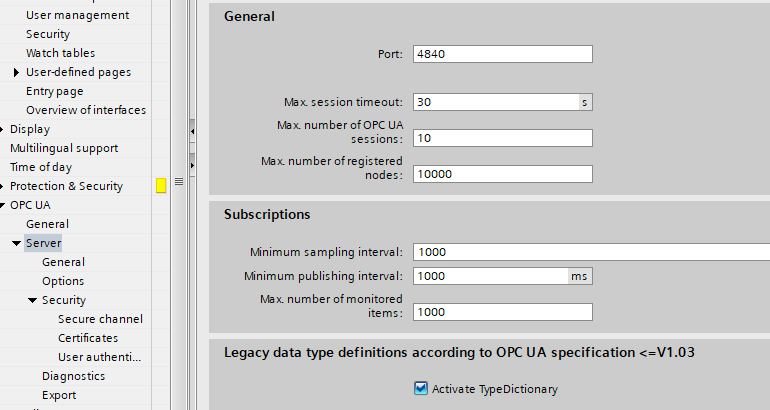
Check the connection settings
On the same page, port 4840 is the one S7 Link uses unless you change it in the app. “Max. number of OPC UA sessions” must cover all the devices connected at the same time.
-
Step 3
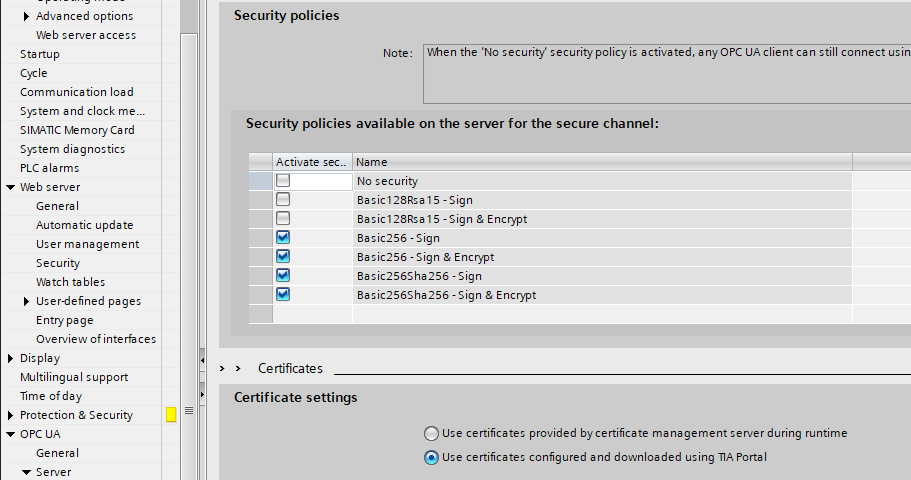
Choose the security policies
Under Security › Secure channel, tick the policies the server offers. S7 Link uses Basic256Sha256 - Sign and Basic256Sha256 - Sign & Encrypt; leave “No security” off, except for tests on an isolated network. Under Certificate settings, keep “Use certificates configured and downloaded using TIA Portal”.
-
Step 4
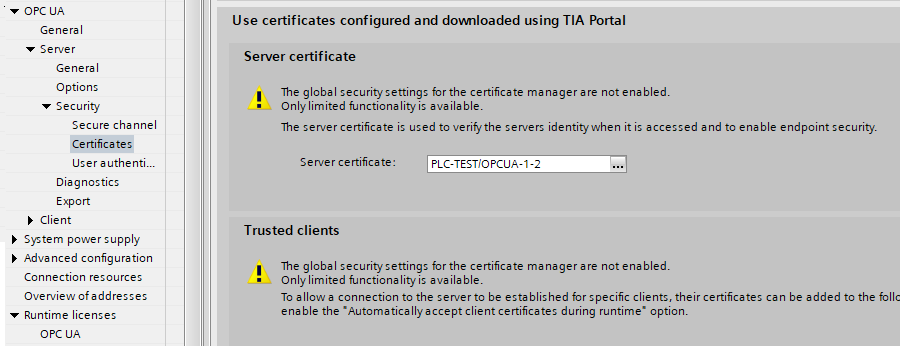
Check the server certificate
Under Security › Certificates, “Server certificate” must show a certificate, here PLC-TEST/OPCUA-1-2; if it is empty, create it with the “…” button. Under “Trusted clients”, add the certificate exported from S7 Link, or turn on “Automatically accept client certificates during runtime”.
-
Step 5
Create the OPC UA user
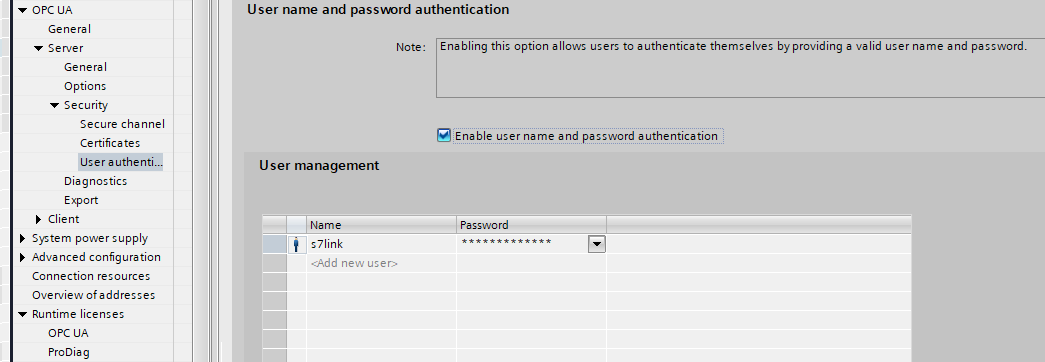
Under Security › User authentication, tick “Enable user name and password authentication” and add the user, here s7link, with its password. Enter the same user and password in S7 Link.
-
Step 6
Decide on guest access
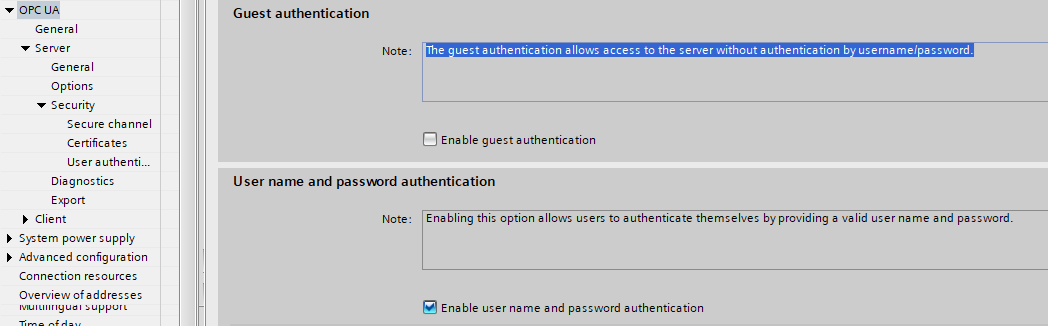
“Enable guest authentication” lets any client connect without user name and password. For a secure connection leave it off; when it is on, S7 Link connects as a guest if the user field is empty.
-
Step 7
Enable the project users
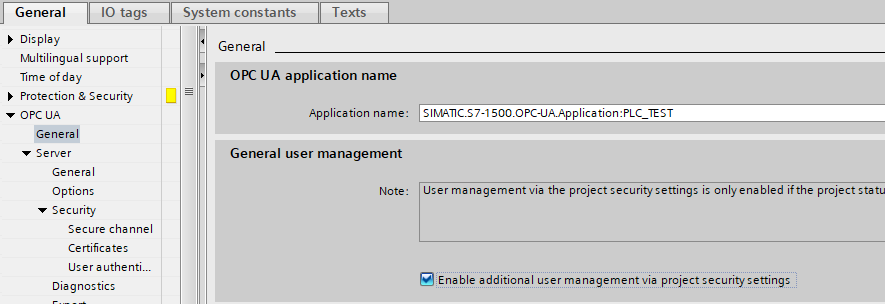
Under OPC UA › General, tick “Enable additional user management via project security settings” to use the users of the project security settings as well.
-
Step 8
Give the user the OPC UA rights
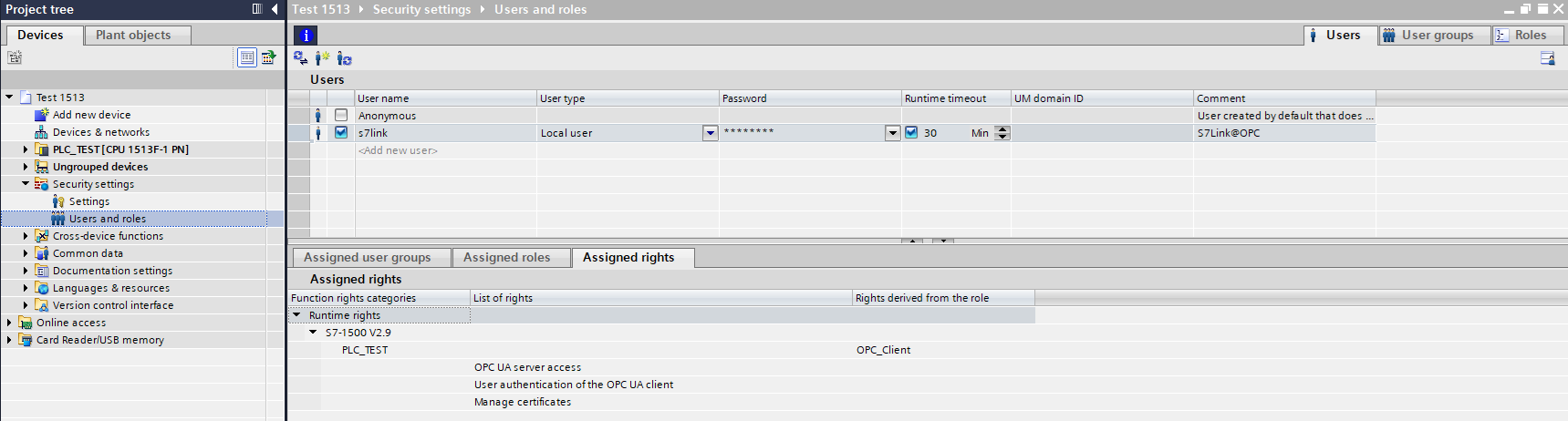
In the project tree, under Security settings › Users and roles, create the user (Local user, with a password) and assign it a role, here OPC_Client, with the runtime rights “OPC UA server access” and “User authentication of the OPC UA client”.
-
Step 9
Make the PLC tags reachable
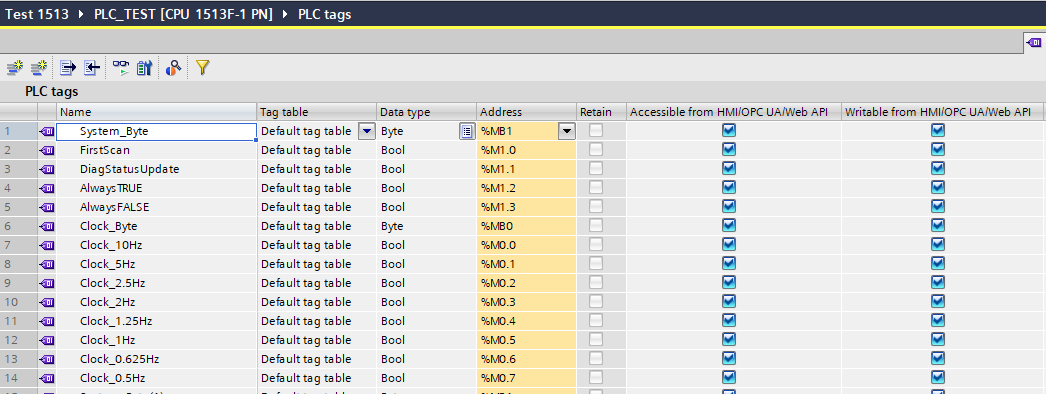
In the PLC tags table, tick “Accessible from HMI/OPC UA/Web API” for the tags to read and “Writable from HMI/OPC UA/Web API” for those to write.
-
Step 10
Make the data blocks reachable
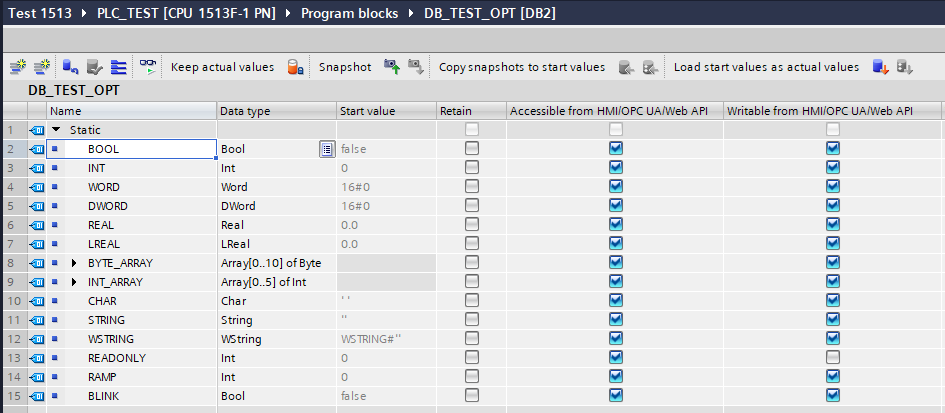
Do the same in every data block, optimized ones included, like DB_TEST_OPT. A variable without “Writable”, like READONLY, is read only in S7 Link. Then download everything to the CPU.
For the app settings see the guide, Preparing the PLC for OPC UA.